Poreia settings are configured in the iOS Settings app under Poreia.
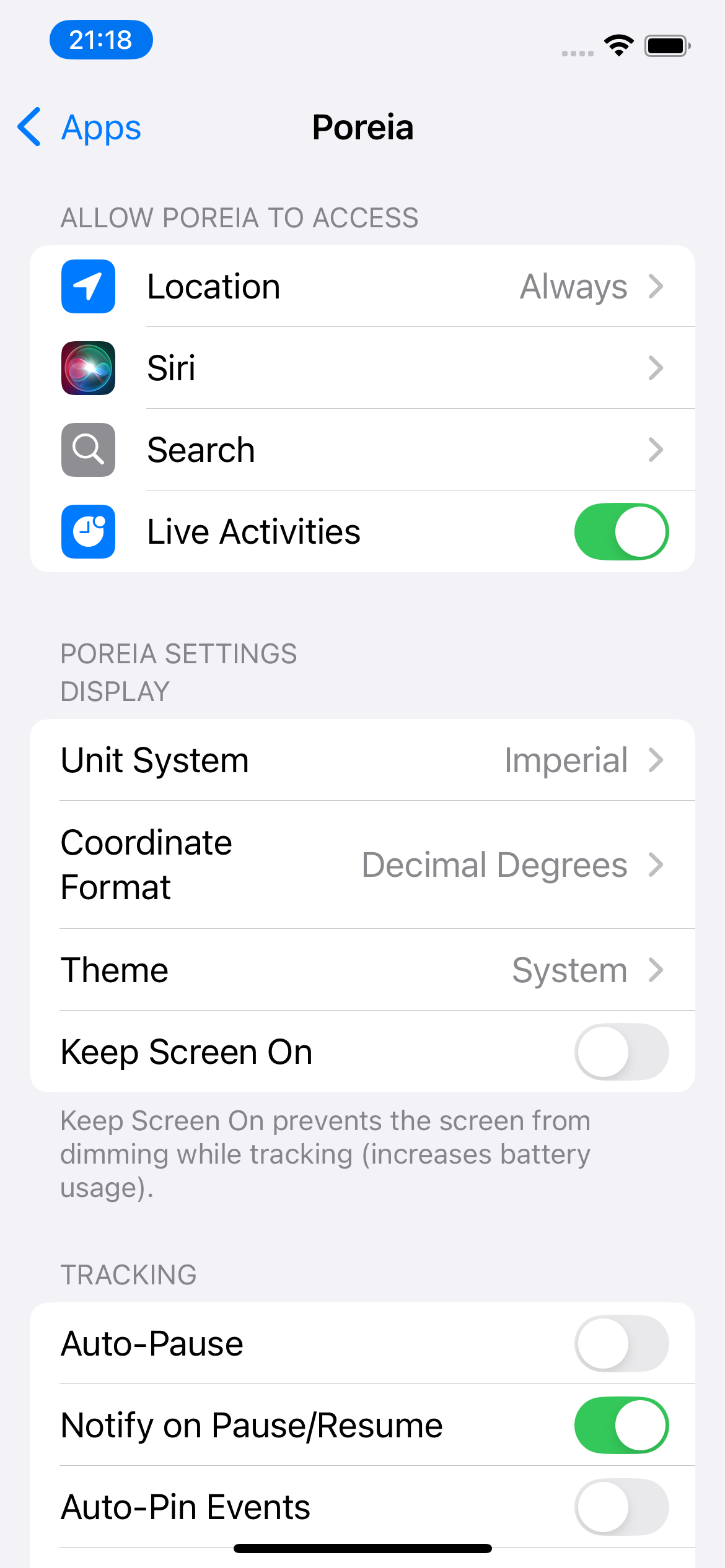
Choose how distances, speeds, and altitudes are displayed:
| System | Distance | Speed | Altitude |
|---|---|---|---|
| Metric | km, m | km/h | m |
| Imperial | mi, ft | mph | ft |
| Nautical | nm, m | kts (knots) | ft |
How GPS coordinates are displayed on the main screen:
Tap coordinates to copy them to the clipboard.
Control the app's appearance:
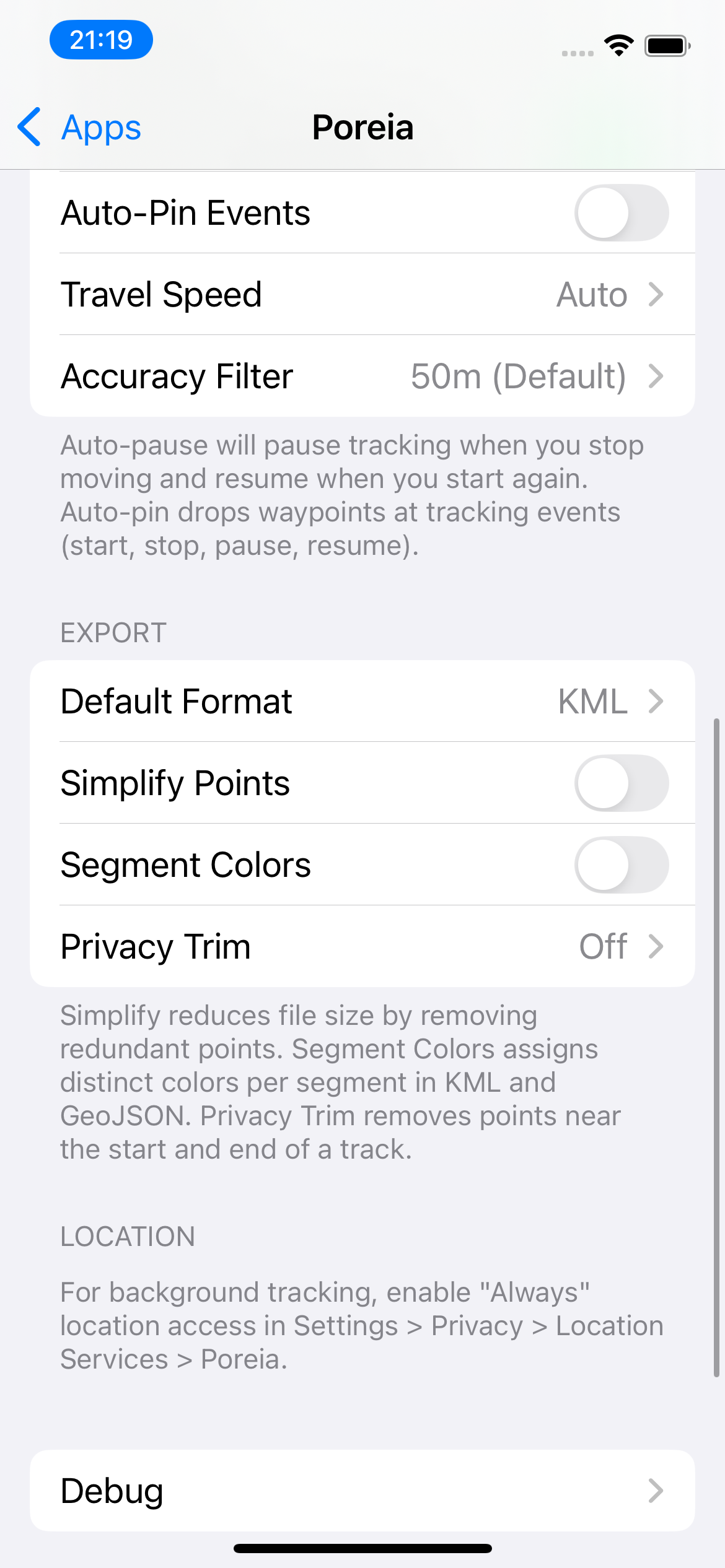
Your expected travel speed affects how frequently GPS points are recorded:
| Setting | Best For | Update Distance |
|---|---|---|
| Auto | Any activity | Adjusts dynamically |
| Low | Walking, hiking | Every 2m |
| Medium | Jogging, cycling | Every 5m |
| High | Driving, flying | Every 15m |
Recommendation: Use Auto for most activities.
Points with GPS accuracy worse than this threshold are discarded:
When enabled, tracking automatically pauses when you stop moving for 5 minutes and resumes when you start moving again.
When enabled (default), you'll receive iOS notifications when auto-pause triggers or when tracking resumes. Helpful when your phone is in your pocket.
When enabled, automatically drop waypoints at tracking lifecycle events (start, pause, resume, finish, Low Power Mode changes).
Prevents the screen from dimming while tracking. Useful for quick glances but increases battery usage.
Your preferred export format (GPX, KML, CSV, or GeoJSON). Used for quick exports and Save & Export.
Reduce file size by removing redundant points. See Point Simplification.
Give each segment a different color in KML and GeoJSON exports. See Segment Colors.
Remove points near track start/end. See Privacy Trimming.
Records app events to a local log file for troubleshooting. A ladybug icon appears in the app when enabled.
When enabled, GPS coordinates are included in debug logs. Otherwise they're shown as [REDACTED].
Note: Disabling debug logging automatically deletes the log file.
Access the debug log via Files app → On My iPhone → Poreia → debug.log, or tap the ladybug icon in the app.