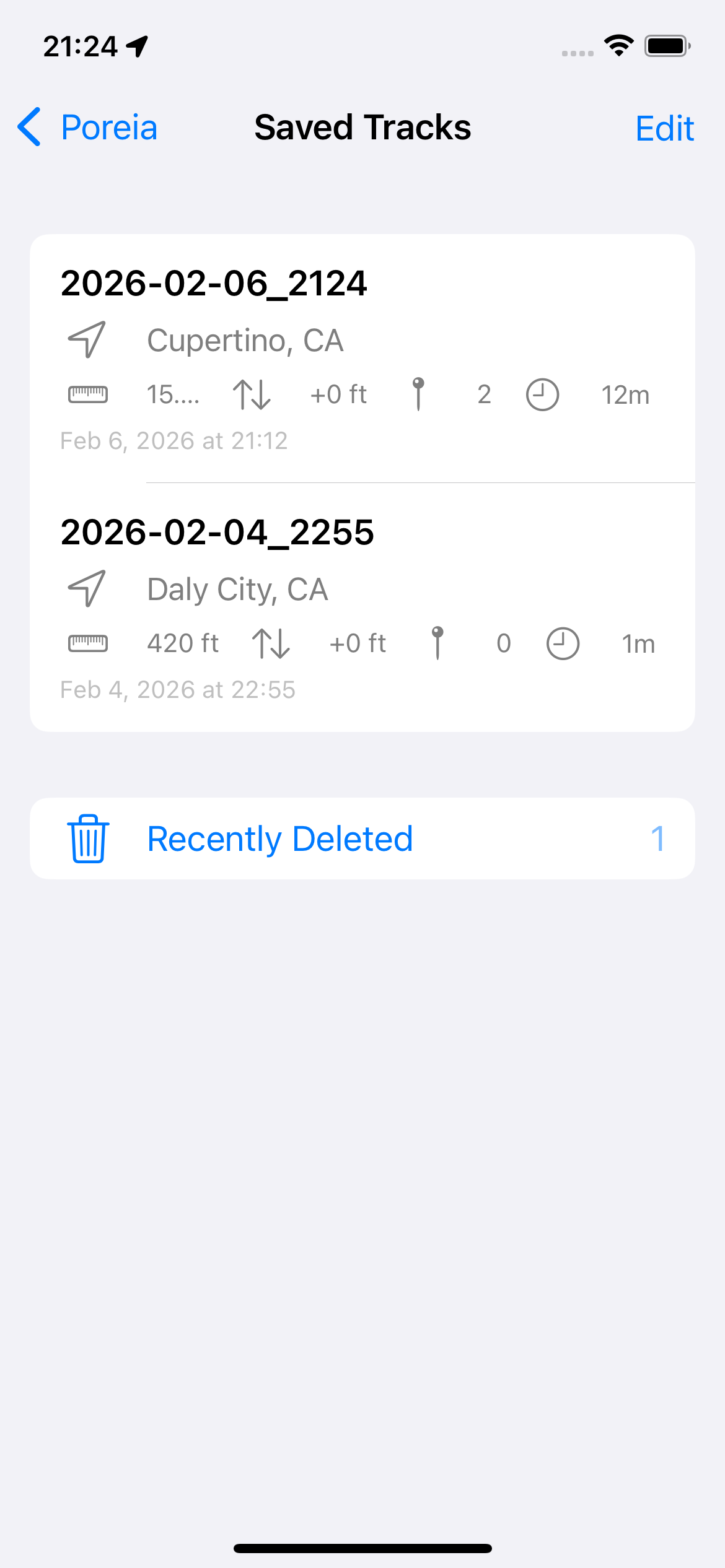
Access your saved tracks by tapping the menu button (•••) and selecting Saved Tracks.
Track List
Each track shows:
Name: The name you gave when saving
Location: City/region where the track started
Distance: Total distance traveled
Duration: Elapsed tracking time
Elevation: Net elevation change
Pins: Number of waypoints (if any)
Tracks are sorted with the most recent first.
Track Details
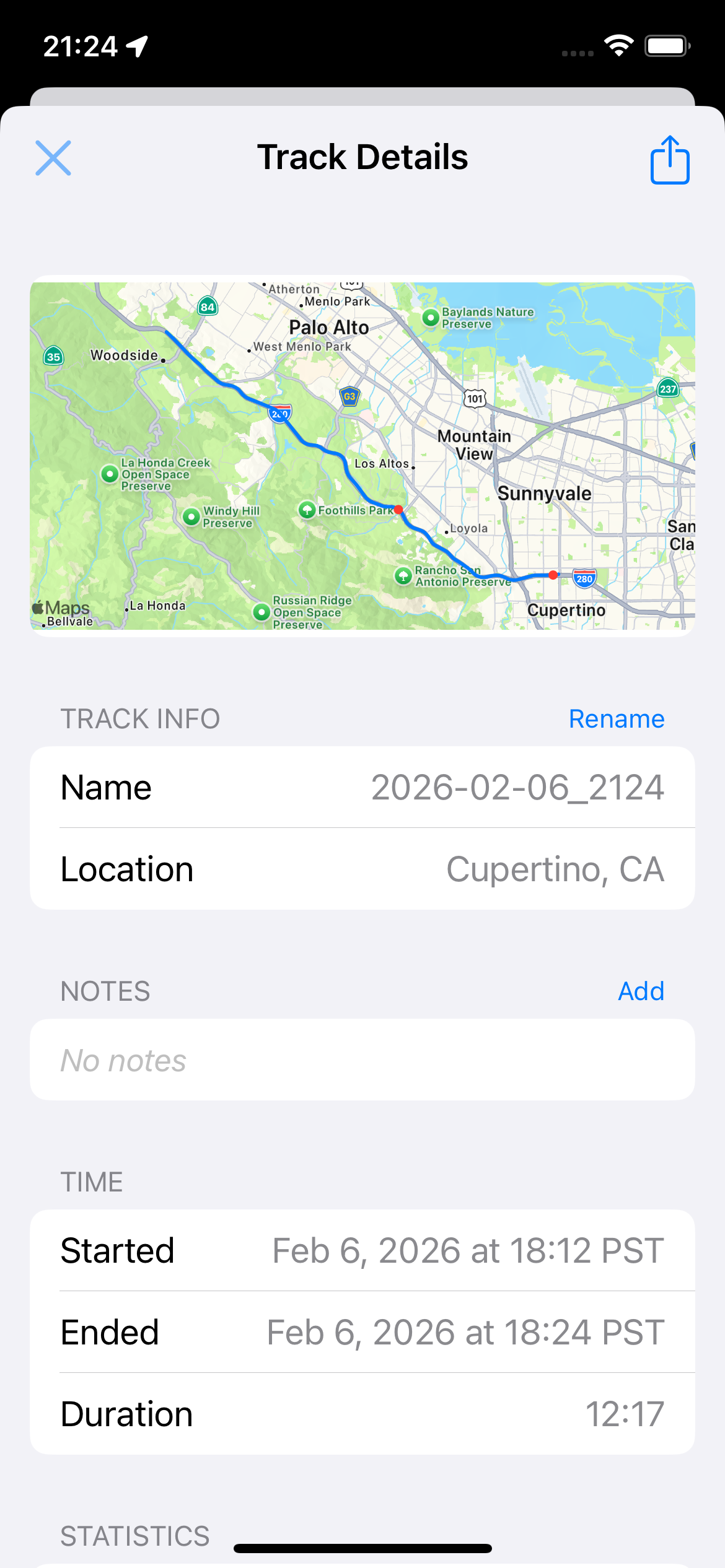
Tap a track to view its details:
Map Preview
A static map shows your route as a colored polyline with waypoints marked as dots. The map is cached for fast loading on subsequent views.
Track Info
Name: Tap to rename
Location: Where the track started
Notes: View or edit track notes
Time
Started: Start time in local timezone
Ended: End time in local timezone
Times are shown in the timezone where the track was recorded, not your current timezone.
Statistics
Distance, elevation change
Average and max speed
Point count, waypoint count, segment count
Actions
Share button: Export the track (top-right)
Delete button: Move to Recently Deleted
Context Menu
Long-press any track in the list for quick actions:
Export: Share in your default export format
Rename: Change the track name
Delete: Move to Recently Deleted
Bulk Operations
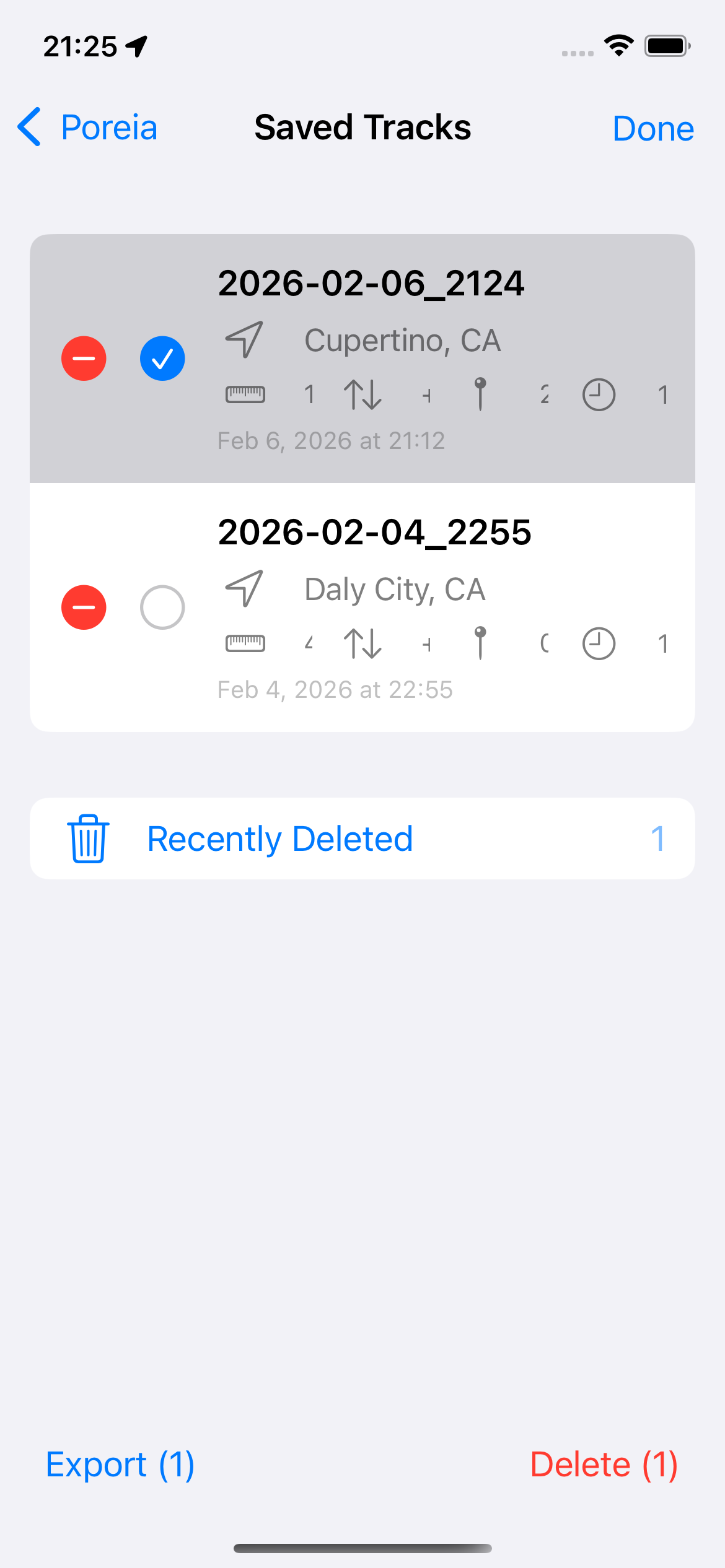
Tap Edit to enter selection mode:
Select multiple tracks by tapping them
Use the bottom toolbar:
Export (N): Export all selected tracks at once
Delete (N): Move all selected to Recently Deleted
Tap Done when finished
Recently Deleted
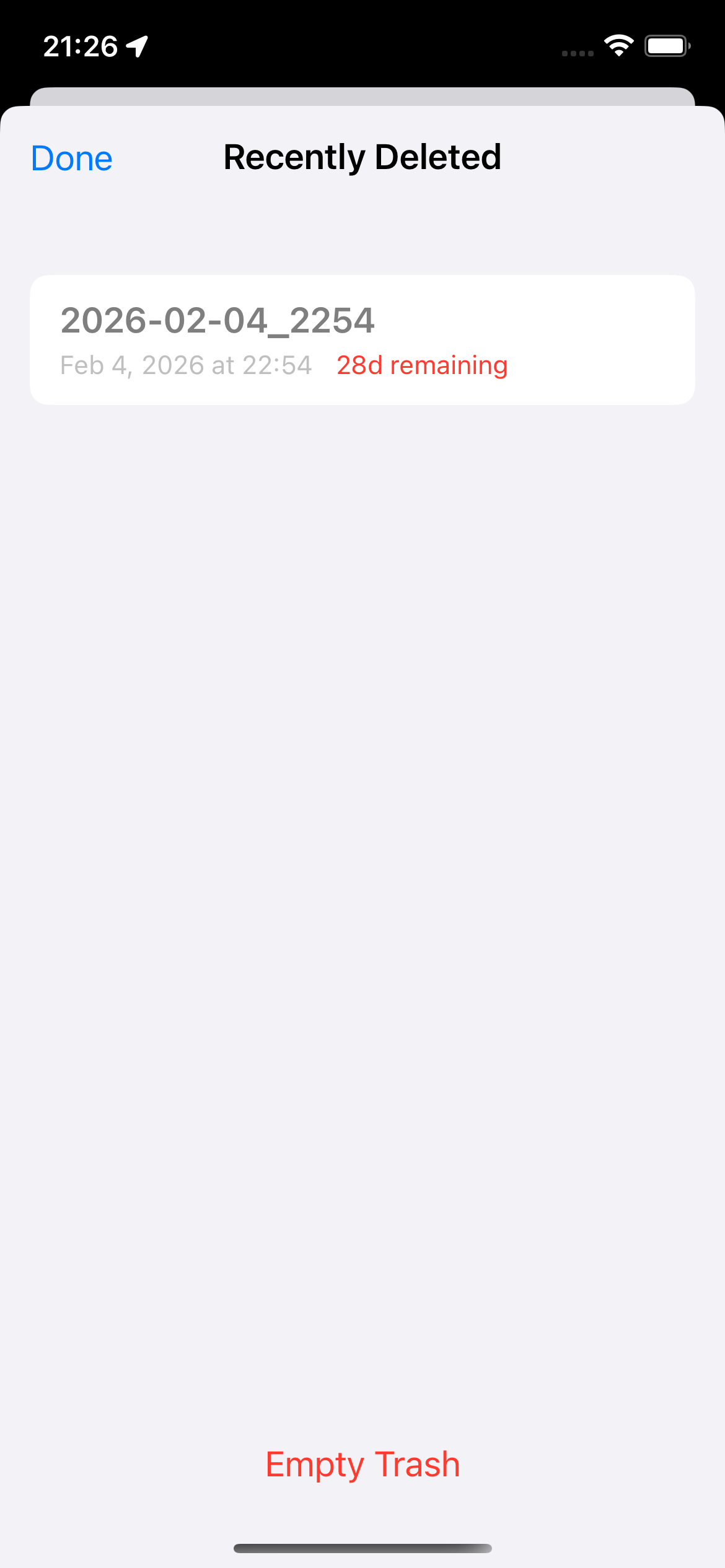
Deleted tracks aren't immediately removed—they go to a "trash" folder for 30 days. Tap the Recently Deleted button at the bottom of the tracks list to:
Restore: Swipe right and tap Restore to recover a track
Delete permanently: Swipe left and tap Delete
Empty Trash: Delete all trashed tracks at once
After 30 days, trashed tracks are automatically purged.
File Access
Exported files are saved to the app's shared documents folder. Access them via: